



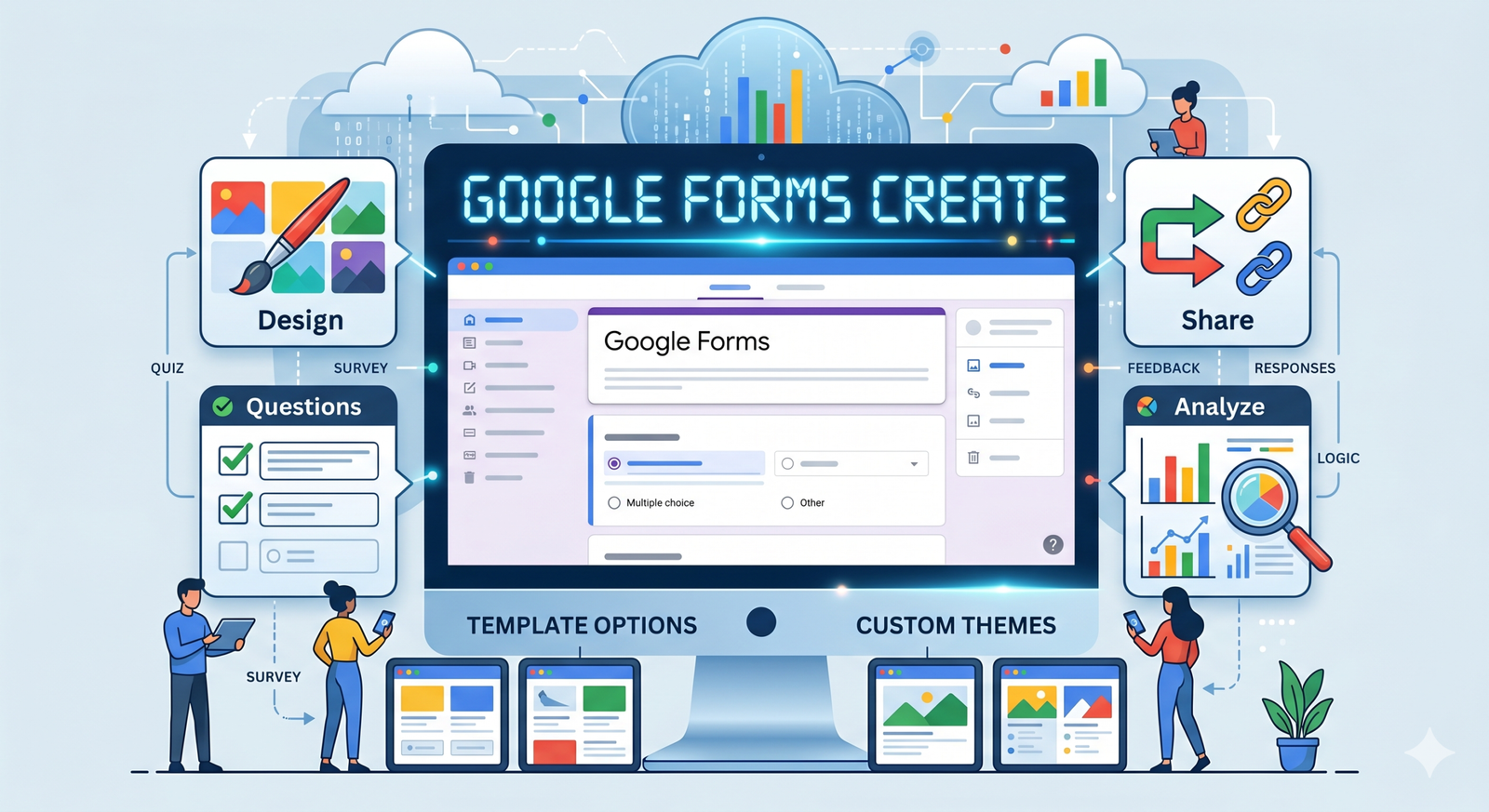
Master the Art of Data Collection: The Ultimate Guide to Google Forms
In the digital age, information is the most valuable currency. Whether you are a small business owner looking for customer feedback, a teacher organizing a classroom quiz, or an event planner tracking RSVPs, the ability to collect and organize data efficiently is crucial. While there are dozens of complex survey tools on the market, Google Forms remains the gold standard for accessibility, power, and—most importantly—cost.
This guide explores everything you need to know about creating a Google Form that looks professional, functions flawlessly, and yields high-quality data.
Why Choose Google Forms?
Before diving into the “how-to,” it is important to understand why Google Forms continues to dominate the field. Unlike many of its competitors, Google Forms is entirely free for anyone with a Google account. It integrates seamlessly with Google Sheets, allowing for real-time data analysis without the need for manual entry.
Furthermore, its “mobile-first” design ensures that your respondents can fill out your form on their smartphones just as easily as on a desktop. This accessibility is key to achieving high response rates in an era of short attention spans.
Step-by-Step: How to Create a Google Form
Creating a form is an intuitive process, but mastering the advanced features is what separates a basic survey from a powerful data collection tool.
1. Starting Your Project
There are three main ways to launch a new form:
-
Directly: Go to forms.google.com.
-
Via Google Drive: Click “New” > “Google Forms.”
-
The Shortcut: Type
forms.newinto your browser address bar to instantly open a blank document.
Designing with Intent
Once you have your blank canvas, start with a clear Title and Description. The description is often overlooked, but it is your best chance to explain the why to your audience. Be concise: state the purpose of the form and how long it will take to complete.
Selecting the Right Question Types
Google Forms offers a variety of formats. Choosing the right one is vital for clean data:
-
Short Answer & Paragraph: Best for names, email addresses, or open-ended feedback.
-
Multiple Choice: Best when you want the user to select only one option.
-
Checkboxes: Ideal when users can select “all that apply.”
-
Dropdowns: Great for long lists (like selecting a country or state) to save screen space.
-
Linear Scale: Perfect for “On a scale of 1-10” satisfaction queries.
Implementing Conditional Logic
If you want to create a truly professional experience, use “Go to section based on answer.” This allows you to skip irrelevant questions for certain users. For example, if a user selects “No” to “Do you own a car?”, the form can automatically skip the section regarding vehicle maintenance.
Enhancing User Experience (UX)
A boring form is a form that doesn’t get finished. To increase your completion rates, focus on the visual and structural flow of your document.
-
Custom Themes: Click the palette icon to change the header image and color scheme. Use high-resolution images that reflect your brand or the topic of the survey.
-
Section Breaks: Don’t overwhelm users with a single, massive list of questions. Break your form into logical sections. This creates a “progress bar” feel that encourages users to keep going.
-
Input Validation: Ensure you get the data you need. You can set rules for “Short Answer” questions so that the form only accepts valid email formats or numbers within a specific range.
Analyzing Your Results
Once the responses start rolling in, Google Forms provides a “Responses” tab that generates automatic charts and graphs. This is excellent for a quick pulse check.
However, for deeper analysis, click the green “Link to Sheets” icon. This exports all data into a spreadsheet where you can use filters, pivot tables, and formulas to uncover trends. If you are running a business, this is where you can calculate Net Promoter Scores (NPS) or track lead conversion rates.
Best Practices for High Response Rates
-
Keep it Brief: Only ask for information you actually plan to use.
-
Mobile Testing: Always preview your form on a mobile device before sending it out.
-
Privacy Matters: If you are collecting sensitive information, ensure your description includes a brief note on how you will protect their data.
-
The Thank You Message: Customize the confirmation message (found in Settings) to provide the next steps or a link to your website.
Conclusion
Mastering Google Forms is about more than just clicking buttons; it’s about creating a frictionless bridge between you and your audience. By following the steps above—leveraging conditional logic, maintaining a clean aesthetic, and utilizing the power of Google Sheets—you can turn a simple survey into a cornerstone of your digital strategy.
read also : The Enigma of Camille Monfort: The “Vampire of Belém
How do I use the new “AI Suggest” feature to build my form?
Once you open a blank form, you’ll see a Gemini icon or a “Suggest questions” button. Simply type a prompt like “Create a registration form for a 3-day tech workshop” or “Design a customer feedback survey for a coffee shop.” Gemini will generate a draft with relevant question types (multiple choice, linear scales, etc.) and even suggest logic jumps. You can then click “Insert” on the ones you like.
Can Google Forms now close automatically when I reach a limit?
Yes! As of early 2026, you can set Submission Limits directly in the “Settings” tab. You can choose to stop accepting responses after a specific date/time or after a set number of people have responded (e.g., “Close after 100 sign-ups”). This eliminates the need for third-party add-ons to manage event capacity.
How does the “Summarize Responses” feature work for long-text answers?
If you have more than three long-text (paragraph) responses, you will see a “Summarize with Gemini” button in the Responses tab. This tool analyzes the text to find common themes, pros, and cons, presenting them in a concise summary with percentages. You can then copy this summary directly into a Google Doc or Slides presentation for your team.
Can I create “Conversational Forms” that show one question at a time?
While the traditional layout is still available, 2026 saw the official launch of Progressive Mode. In the “Settings” menu, you can toggle this on to show respondents only one question at a time, mimicking a chat-like interface. This significantly reduces “form fatigue” and is much easier to fill out on mobile devices.
How do I link my form to Google Sheets for real-time analysis?
The “Link to Sheets” button remains in the Responses tab, but it now supports Live Data Visualization. When you link to a new or existing spreadsheet, you can use the “Insert” menu in Sheets to create an interactive Canvas Dashboard. This dashboard updates automatically as new form responses come in, allowing you to track results via heat maps or kanban boards without any manual work.
